Learn how to automatically draft email responses in Gmail using OpenAI's GPT models.

Imagine opening up your email inbox and having replies to important personal emails already drafted for you. Or replies to VIP customers, answers to common questions for your business, or polite declines to cold sales emails.
Relay.app is an intuitive automation platform that lets you seamlessly connect Gmail, OpenAI, and other essential apps to do exactly this, in minutes. In this guide, we'll show you how to automatically draft context-aware email responses with OpenAI GPT and other AI models.
TL;DR
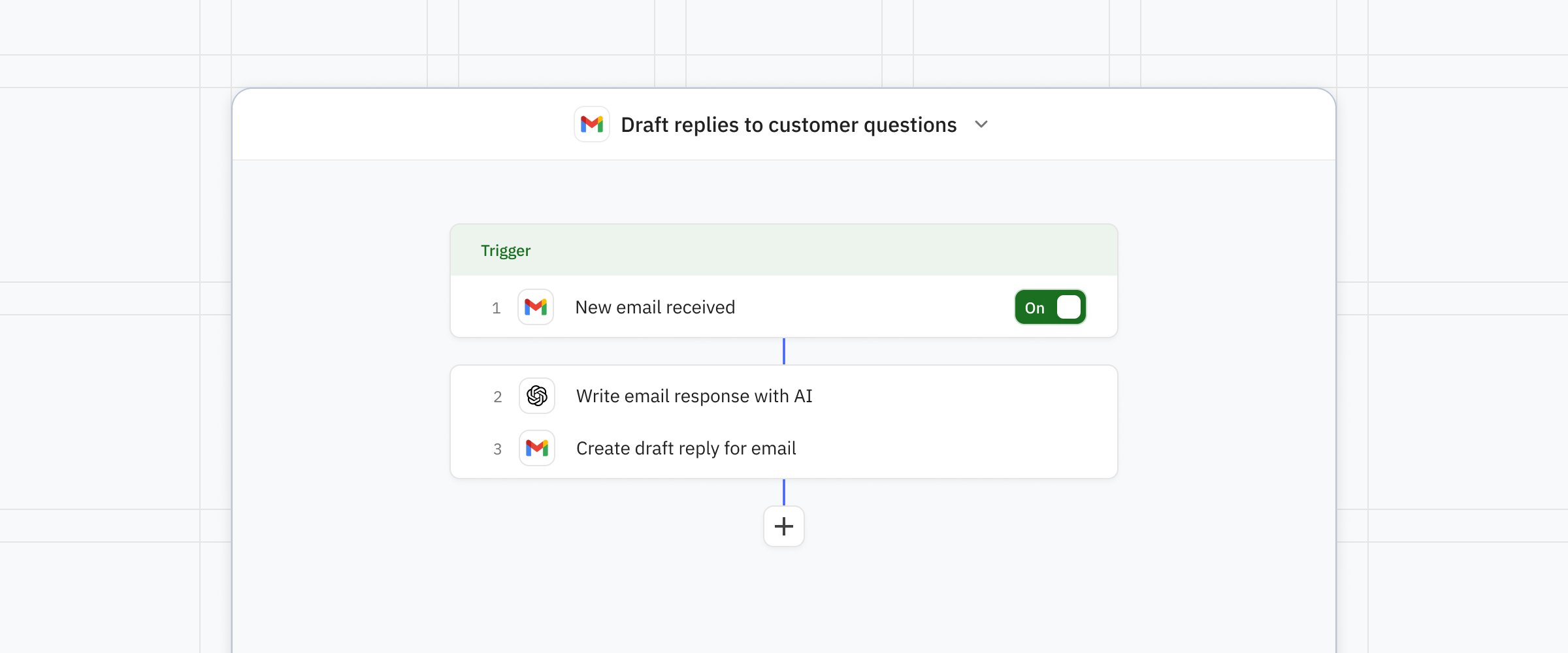
Here's a quick overview of the workflow we're building. You can easily set this up manually, or you can just prompt the Relay.app assistant to build it for you!
Gmail trigger: Trigger the workflow when a new email is received in your inbox.
AI step: OpenAI reviews the email and drafts a response.
Gmail automation: Create draft reply using the response from OpenAI.
One quick note on terminology
Wait… We've already talked about ChatGPT, OpenAI, and GPT! What's the difference?
GPT: The underlying AI model. There are multiple numbered versions and new ones are regularly launched.
ChatGPT: The product. This is the AI chat application that most people interact with and are familiar with.
OpenAI: The company that builds the models and the product.
So technically, we're drafting emails using OpenAI GPT models, because we're going to be interacting with the AI models directly via OpenAI's API, skipping the frontend chat interface entirely. But it's ok, you can just call it ChatGPT and everyone will understand you perfectly!
How to build it
1. Create a new workflow and add a Gmail trigger for "Email received"
Get started by adding a Gmail trigger for "Email received." App-based triggers like this one detect changes in your connected apps and tell the workflow to start a new run.
If this is your first time using a Gmail integration in Relay.app, a prompt will guide you through the connection process to allow Relay.app do work for you in Gmail.
Tip #1: Outlook user? Just choose an Outlook email trigger instead!
Tip #2: If you don't want your workflow to trigger on replies, check the box for "Only trigger for first email in conversation."
2. Add trigger filters to avoid over-triggering on irrelevant emails
Next, add filters to exclude any emails you don't need the workflow to process. This is critical! Unless your workflow is targeting a very specific email inbox that doesn't receive many emails, chances are you don't want your workflow to run on every single email you receive. That can result in hundreds of wasted steps and tokens.
3. Add an AI write step and choose an AI model of your choice
Add an AI write step and select "Email" as what you're writing. Fill in the prompt with a few details about what it should write. Start simple; you can always add more later. Attach the email from the trigger as data so the AI can respond to it.
If you like using GPT models, select that as the AI model to write the email. In addition to OpenAI, you can also choose from other model providers like Anthropic, Gemini, and others.
Tip: Test your prompt! Select a sample email to use to draft a response to.
4. Add a "Create draft reply" automation step
The last step in your workflow is an automation to create a draft reply in Gmail (or Outlook, if you selected that as your email provider instead). Add a "Create draft reply" automation. Select the trigger email as the email to reply to. In the body field, insert the response from GPT or other AI model from the previous step.
Tip: If you also want to get a notification over chat when a new email draft is ready for review & sending, you can add a Slack or Discord message step to send you a quick ping.
5. Test your new workflow
Click "Start a test run" to try out your new workflow. You get free test runs that reset every week in Relay.app, so you can validate it's working just the way you need it to for free. Select an email to test on and review the draft it creates for you.
Tip: Not happy with the response? You can tweak your prompt, or ask the Relay.app assistant to update it for you based on your feedback.
6. Turn the workflow on
When you're happy with the workflow, flip it on! It will trigger automatically for every new email in your inbox that matches your trigger, write an email with GPT or the model of your choice, and have a draft ready for your review in your inbox.
How you can make it even better
Once you have your basic workflow set up, there's more you can do!
Fine tune responses with AI classification: Add an AI step to classify the email so you can create more specific prompts based on the type. For example, classify bug reports, feature requests, and questions from customers, or classify cold sales emails and personal emails in your personal inbox.
Pull additional context or knowledge for reference: If you're writing emails that could use information from another source, like a website or Google doc or Notion database, you can attach it to the AI step as knowledge, give it web access, or add a "Find" step to look up the right resource.
Look up past responses: Responding to a customer? Your response will be so much better if the AI is aware of past emails to that customer. Add a step to look up the last up-to-10 emails with the customer, or find their information in your CRM.
Set the right voice: Are you a polite & to-the-point kind of writer? An emoji fanatic? Like the occasional touch of Spanglish? Include a few examples of good emails in your AI step to give a sense of your voice. You can just paste in the examples, look up past recent emails for reference, or link to a document where you can keep your top references.
Want to skip the manual building? Just ask Relay.app to build it for you.
Open the Relay.app assistant panel on the left and start chatting! The Relay.app assistant is a powerful chat-based AI assistant specially optimized for building workflows for you. Just tell it what you want to automate, connect any requested apps, and let it do the building for you. It can event proactively suggest improvements and fixes for you.
About
Relay.app
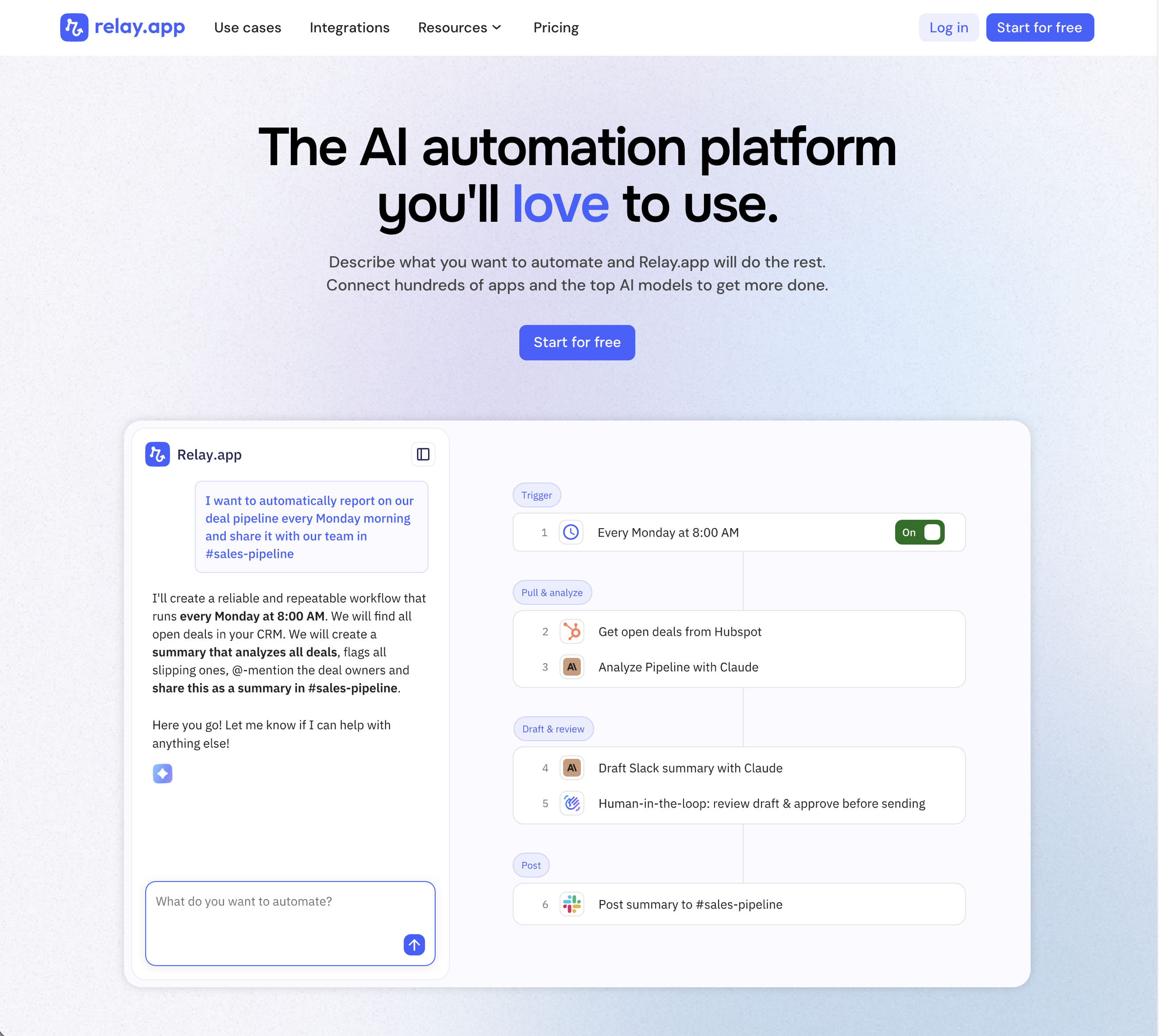
Relay.app is the most intuitive way to automate with AI. Just describe what you want to automate, and Relay.app will build a reliable, visual workflow for you. Relay.app connects with 200+ apps and all the top AI models. Non-technical users who have struggled with less user-friendly tools like Zapier or Make can easily create AI workflows in minutes, while longtime automation experts have all the advanced tools they need to build complex flows.
Product details
Designed to be intuitive to use: Relay.app is thoughtfully designed for individuals and teams of all technical abilities, from novice to expert.
An AI assistant optimized to build workflows for you: Chat with the AI assistant to build, test, and optimize workflows. It will proactively spot issues and make suggestions for you.
Hundreds of native integrations, plus custom API calls: 200+ deeply built, first-class native integrations. Don't see your app on the list? Just describe what you need and Relay.app's AI assistant will write a custom API call for you.
Collaborative building: Share workflows and app connections across your team for seamless multiplayer automation.
Human-in-the-loop oversight: Bring a teammate in when you need real life approvals, data entry, or manual review.
Universal AI credits for any AI model: Access the best models from OpenAI, Anthropic, and more using included AI credits.
Predefined processes for token efficiency: Set up a token-free structure for repeated work and limit AI tool calls to just the places you need them.
Technical power: Advanced users can go further with rich native tables, custom JavaScript steps, MCP servers, and custom HTTP requests.
Pricing
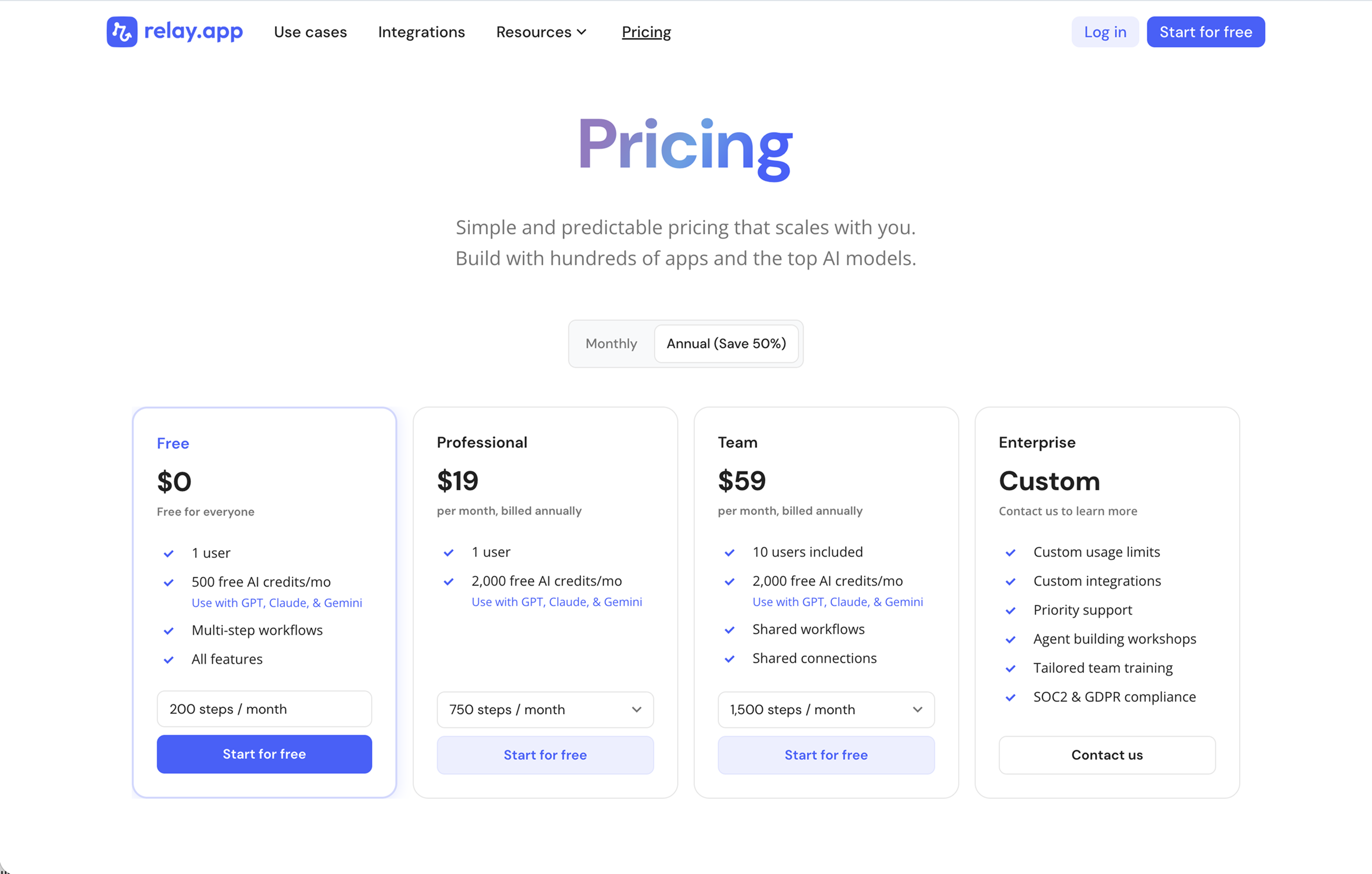
Relay.app's plans scale with your usage and team, starting with a generous free tier. All plans include free test runs that refresh every week so you can make sure everything works perfectly before you start paying.
Free: $0/month for 1 user, 200 steps, and 500 AI credits
Professional: $19/month (billed annually) for 1 user, 750 steps, and 2,000 AI credits
Team: $59/month (billed annually) for up to 10 users, 1,500 steps, and 2,000 AI credits
Enterprise: Custom pricing for organizations with advanced usage or security requirements
Ready to start building?
If writing good emails is critical to your business, you can give yourself a leg up on speed, grammar, and content with high quality, context-aware AI generated drafts. Plus, by automating draft creation rather than auto-responding, you'll skip the AI slop trap because you'll always be reviewing your work before it goes out.
And you can get this going for free today in Relay.app! Sign up and start building for free today.
FAQs
Which Relay.app plan should I start with?
Relay.app has a free plan, so start there. Once you reach the free plan's step or AI credit limit, upgrade to a paid plan. The difference between the Professional and Team plan is the number of users. Upgrade to Professional if it's just you, and upgrade to Team if you're working with others. And we suggest going with annual billing because it comes with a good discount! Learn more at www.relay.app/pricing.
How do Relay.app's AI credits work?
Access to top models like GPT, Claude, Gemini, Perplexity, and more is included with your Relay.app plan. The Relay.app AI Agent will pick the best model for you according to your use case. Each time an AI step runs, it uses AI credits from your plan. More expensive models cost more credits, so you can change models if an AI task is costing too many credits. If you already have an API key with a model provider, you can use that instead to handle billing through the model provider directly.
Can Relay.app handle specific use cases better than a general AI agent like ChatGPT or Claude?
Yes, for structured and repeatable use cases. General AI agents are powerful conversational tools, but they aren't designed to integrate with your apps, trigger automatically, or include team-based approvals. Relay.app connects to 100+ apps and lets you build workflows for specific use cases, like auto-triaging support tickets, routing sales leads, or generating reports on a schedule, with human-in-the-loop checkpoints built in. It's the difference between asking an AI to do something once and having a system that does it reliably every time.